

Virtual Camera
|

|
The Matab Virtual Camera topology is shown below. There are many components associated with the topology and each component has its own code base. This landing page will provide you with everything you need to get up and running with any Xilinx Zynq SoC board in no time.
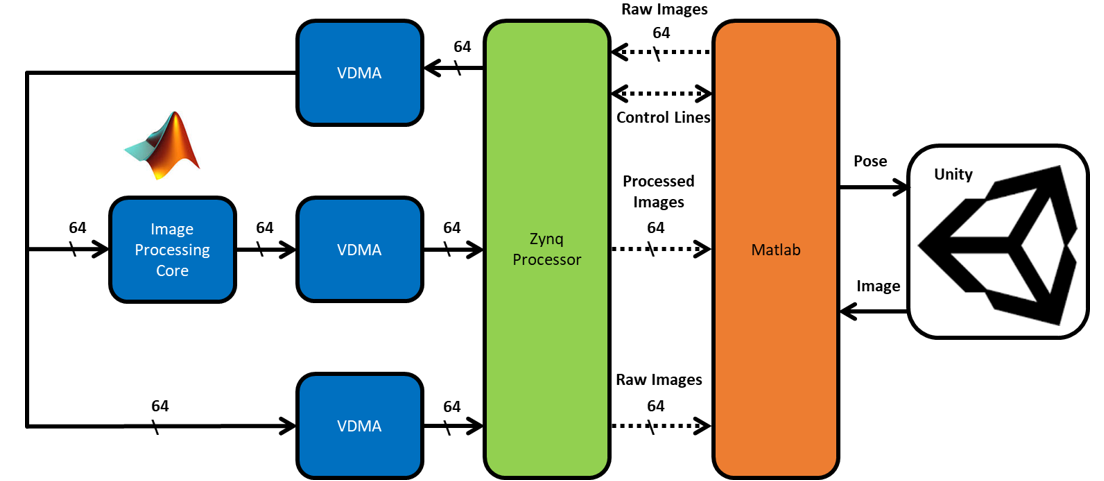
Below are the links to the Mathworks File Exchange code bases that are required for the Virtual Camera. Depending on your specific use case you may not need all of the code bases. A brief description of each code base is given below and detailed tutorial videos we be available soon.
Bare Bones Virtual Camera Capability
Matlab Virtual Camera
Enables Matlab to communicate via WiFi to the Matlab Zynq Server running on the Zynq SoC board.
Matlab Zynq Server
Communicates with the Matlab Virtual Camera code base listed above.
Virtual Image Generation
Mathworks Unity Link
Enables Matlab to talk to the Unity graphics engine. Unity can create the virtual frames for the virtual camera. This is not needed if one already has image frames to send across to the hardware board.
FPGA Processing
Update Device Tree
In order to access the FPGA frame buffers in linux, the device tree must be updated. This code base gives detailed instructions of how to perform this operation.
Virtual Camera Vivado Project
Vivado VDMA project that implements the topology above with the exception that the image processing core is just a feed through. Compiling this project will generate a system.bit file which must be transferred to the Zynq SoC boot directory. It is also necessary to download the User Space VDMA driver to access the FPGA image frames from linux.
User Space VDMA Driver
This driver allows one to access the FPGA image frames without the need to recompile the kernel or create any kernel driver. This 'driver' is in user space and accesses the FPGA buffers via the UIO framework.
Simulink HDL Generation and Targeting
Zynq Vivado Reference Design for Simulink
This reference design incorporates the Virtual Camera Vivado project from above however the Image Processing Core section is not a feed through but rather a cut out for where the Simulink generated HDL IP core should automatically be placed.
Sobel Filter for HDL Coder
This code base implements a Sobel filter in Simulink that is capable of being converted into HDL and run on any Zynq board via a Virtual Camera.
Frame-Based Sobel Filter for HDL Coder
This code base implements the same Sobel filter from above however it is created via a frame-based approach using some of the newest features of the Mathworks tools. This makes the design much easier as one does not have to worry about kernel buffering and control signal synchronization.
Matlab Virtual Camera
Enables Matlab to communicate via WiFi to the Matlab Zynq Server running on the Zynq SoC board.
Matlab Zynq Server
Communicates with the Matlab Virtual Camera code base listed above.
Virtual Image Generation
Mathworks Unity Link
Enables Matlab to talk to the Unity graphics engine. Unity can create the virtual frames for the virtual camera. This is not needed if one already has image frames to send across to the hardware board.
FPGA Processing
Update Device Tree
In order to access the FPGA frame buffers in linux, the device tree must be updated. This code base gives detailed instructions of how to perform this operation.
Virtual Camera Vivado Project
Vivado VDMA project that implements the topology above with the exception that the image processing core is just a feed through. Compiling this project will generate a system.bit file which must be transferred to the Zynq SoC boot directory. It is also necessary to download the User Space VDMA driver to access the FPGA image frames from linux.
User Space VDMA Driver
This driver allows one to access the FPGA image frames without the need to recompile the kernel or create any kernel driver. This 'driver' is in user space and accesses the FPGA buffers via the UIO framework.
Simulink HDL Generation and Targeting
Zynq Vivado Reference Design for Simulink
This reference design incorporates the Virtual Camera Vivado project from above however the Image Processing Core section is not a feed through but rather a cut out for where the Simulink generated HDL IP core should automatically be placed.
Sobel Filter for HDL Coder
This code base implements a Sobel filter in Simulink that is capable of being converted into HDL and run on any Zynq board via a Virtual Camera.
Frame-Based Sobel Filter for HDL Coder
This code base implements the same Sobel filter from above however it is created via a frame-based approach using some of the newest features of the Mathworks tools. This makes the design much easier as one does not have to worry about kernel buffering and control signal synchronization.
Video Tutorials Coming Soon...